
Exploded Views for Shopify: Every Part Clickable, with Parts List and Cart
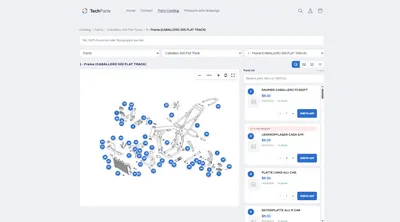
Your customers spot the part on the drawing, click the hotspot, and add it to the cart — without copying down a number and without a support query.
- Numbered hotspots on every part
- Bill of materials with price, stock, and quantity
- Add to cart straight from the drawing

More than an image with a few dots
Spare-parts retailers keep asking the same question in the Shopify community: how do I link the parts of an exploded view to my products, by click or by hover? Many themes let you tag a handful of products on an image. That's designed for lifestyle images — it's not enough for a bill of materials with sixty items.
An exploded view needs more than hotspots with links: the drawing's item numbers, the bill of materials alongside it, quantities, OEM numbers, and a cart that doesn't route through the product page first.
| Criterion | Clickable hotspots on an image | Exploded View with Techparts |
|---|---|---|
| Designed for | a handful of products in a photo | every item on a bill of materials |
| The hotspot shows | a marker | the drawing's item number |
| A click leads | to a product page | to the row in the parts list and the card with price and cart |
| Bill of Materials | none | Parts list with SKU, OEM number, stock, and quantity |
| Parts used multiple times | one hotspot per link | combined, e.g. “4× in the drawing” |
| Detail | as large as the image | Zoom and full screen, with hotspots moving along |
What the drawing can do in your store
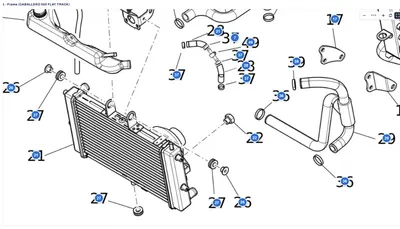
- Numbered hotspotsEvery item carries its number from the drawing. Even long OEM numbers fit — the hotspots grow to match.
- Parts list alongsideDescription, SKU and OEM number, price, stock, and quantity needed. Hotspot and row are linked.
- Zoom and full screenMouse wheel, two fingers, or a zoom bar. In full screen, the drawing covers the whole page.
- Four viewsSplit, list below, drawing only, or list only. You decide which one the store opens with.
- Multiple sheetsFront, back, hydraulics: tabs above the drawing switch the sheet and the list together.
- Product card at the hotspotImage, price, quantity selector, and add-to-cart button, on hover or on click.
- Search within the listBy description, SKU, and OEM number. Searching for
341005also finds00341005. - Add to cart from the rowShopify's own cart, with the counter in your theme updating right along with it.
How the hotspots get onto the drawing
- Upload the drawing. By drag-and-drop, as a file, or from your Shopify files.
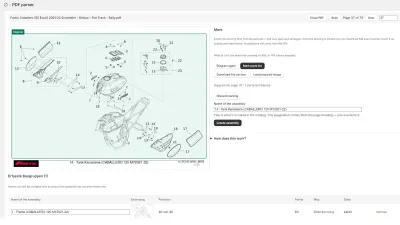
- Place the items. A double-click on the drawing creates an item, dragging moves it. If the drawing is a PDF catalog, the PDF parser reads the item and SKU numbers itself.
- Assign products. Through Shopify's product picker, with multiple products possible at one item, such as multipacks or successor parts.
- Add the block. In the theme editor, the “Exploded View” block goes into the product template once. It shows up on every product that has a drawing and stays hidden otherwise.

On the product or in the catalog
The drawing can hang directly on the product: a machine's product page carries its exploded view, and the customer orders the spare part right where they found the machine. When parts belong to many models, the parts finder leads via manufacturer, model and model year to the assembly with its drawing. Both paths share the same data model and can be combined in the same shop.
What matters in detail for a good interactive drawing is covered in the guide article on interactive exploded views.
For any range you need to show
Exploded views help anywhere a part is easier to show than to name — an overview by industry is under Industries, for example for motorcycles, car parts, boats and home appliances. If a product carries more than one drawing, say a front and back view, the article Multiple exploded views on one product shows what that looks like in the shop.
Frequently Asked Questions
How many hotspots fit on one drawing?
As many as the drawing has. Distinct products per drawing are capped at 128, a Shopify limit. The editor shows a badge from 113 products onward, and larger assemblies get spread across multiple sheets.
Does it work with my theme?
The block goes wherever you want in the theme editor, just like any other section of an Online Store 2.0 theme. No theme files are written. Interaction with the cart has been tested in eight themes, including Dawn and Horizon.
Can I use my PDF exploded views?
Yes. The PDF parser opens the catalog in your browser, you frame the drawing and the bill of materials, and it reads the item and SKU numbers. If the PDF has no text layer, it recognizes the item numbers from the image.
What does it cost?
The drawing on the product is included in the free plan, for up to fifteen products with a drawing and no time limit. Parts catalog and catalog search come with PRO, the PDF parser with MAX. Prices are under Plans.
More on this in the Guide
-
Interactive Exploded View: Hotspots, Parts List and Cart in the Shop
What an interactive exploded view has to deliver in the shop: numbered hotspots, a linked parts list, zoom, cart – and how it gets into Shopify. Read more -
Digitizing a Spare Parts Catalog: From PDF to a Clickable Drawing in the Shop
Manufacturer catalogs as PDF, supplier data as XML, products as CSV: how existing documents become an interactive spare parts catalog in the shop. Read more -
Avoiding Wrong Orders and Returns for Spare Parts
Why customers order the wrong spare part, and how a shop can prevent it: drawing, model matching, quantities, notes and superseded parts. Read more


See your own catalog in your own shop.
Install Techparts, set up one assembly, view it in the shop. The free plan covers fifteen products with a drawing, with no time limit.