
Parts Finder for Shopify: From Vehicle to Matching Spare Part
Your customers select the manufacturer, model, and year, or type in a part number. The parts finder doesn't drop them into a long results list — it takes them straight to the assembly, the drawing, and the part.
- Selector fields for every level
- Search by part number, OEM number, and model
- Every assembly with its own address

Two ways to the part
Spare-parts customers arrive with one of two kinds of knowledge. Some know their vehicle or machine but not the part. Others have a number from the old part, the manual, or an invoice. The parts finder serves both on the same page.
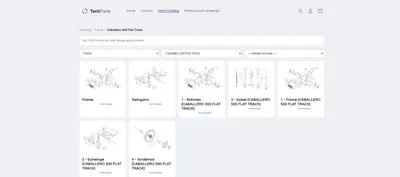
- By vehicleSelector fields for manufacturer, model, year, and assembly, plus tiles with images and a breadcrumb that always shows where the customer is.
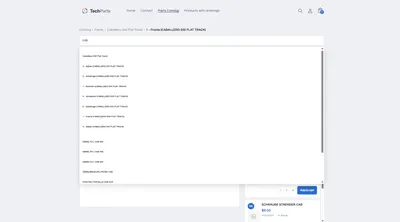
- By numberA search field spanning the whole catalog finds parts by description, SKU, and OEM number, as well as models and assemblies.

It ends at the part, not at a list
A vehicle filter shows the products in a collection that are marked as fitting. The customer gets a list and has to work out for themselves which part they need.
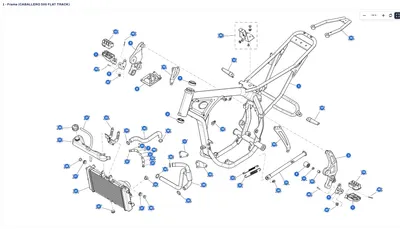
Techparts' parts finder ends somewhere else: at the assembly. There you find the exploded view with numbered hotspots, the parts list beside it with price, stock, and quantity needed, and every row sends the part straight to the cart. Search leads there too. Clicking a result opens the drawing, highlights the item, and shows the product card. Each result also states its path, such as “Kymco › MXU 500 › Cylinder” — otherwise the list would look like the same entry twenty times over.
The levels are named the way your range needs them
The parts finder doesn't have fixed levels — it works with a tree. You decide how deep it goes and what the levels are called:
| Range | Levels in the parts finder |
|---|---|
| Vehicles | Manufacturer › Model › Year › Assembly |
| Machines | Manufacturer › Series › Serial numbers › Assembly |
| Devices | Brand › Device type › Model › Assembly |
The bottom level carries the drawing. The store hides entries that have no drawing and no visible subcategories, so no customer ever lands on an empty page. Every level and every assembly has its own address, so support can send a link straight to exactly the right assembly.
Configured in the theme editor
- Selector fieldsAutomatic, side by side, stacked, or arranged along the side — the look is configurable.
- Search fieldAt the top, below the breadcrumb, or at the bottom, with your own placeholder text or none at all.
- TilesNumber of columns, aspect ratio, spacing, and colors.
- BreadcrumbPosition and label of the top level.
The catalog block comes with 68 settings. No code is needed for it, and no theme files are written.
Fast, even with large catalogs
- The tree loads level by level, not the whole catalog at once.
- Search loads only the slice of its index that matches the search term, around 128 kB on average.
- There's no external search service and no server of ours in your customers' loading path.
- Without JavaScript, the store still delivers the top level.
Frequently Asked Questions
Do I need vehicle data like TecDoc for the parts finder?
No. The parts finder works with your own catalog: your levels, your drawings, your products in Shopify. Techparts doesn't import any vehicle database.
Does the parts finder work without exploded views?
The path always ends at an assembly with a drawing and a parts list, because that's where the customer finds their part. The store hides entries without a drawing. If you want to work entirely without drawings, a plain product filter serves you better.
Can support link directly to an assembly?
Yes. Every level and every assembly has its own address. The link leads straight there, even from an email or a newsletter.
Which plan includes the parts finder?
Parts catalog and catalog search belong to the PRO plan. Details are under Plans. How to build such a catalog is explained in the guide article spare parts catalog in Shopify.
More on this in the Guide
-
Spare Parts Search by Part Number: SKUs and OEM Numbers That Actually Get Found
Why customers often can't find their part number in the shop – leading zeros, hyphens, old numbers – and how a spare parts search finds it anyway. Read more -
Spare Parts Catalog in Shopify: How Customers Find the Right Part
How a spare parts catalog is built in Shopify: category tree, exploded views with hotspots, parts list and search by part number. Read more -
Selling Motorcycle Parts Online: The Spare Parts Shop for Motorcycles, Scooters and Quads
Selling motorcycle parts online: how a shop organizes makes, models, model years and OEM numbers so customers order the right part without a follow-up question. Read more


See your own catalog in your own shop.
Install Techparts, set up one assembly, view it in the shop. The free plan covers fifteen products with a drawing, with no time limit.