
Making Bills of Materials Orderable in Shopify
A bill of materials is more than a list. Your customers see the price, stock, and quantity needed for every item, and can add an entire assembly to the cart in just a few clicks, instead of searching for each part one by one.
- SKU and OEM number for every item
- Quantity pre-filled, alternatives expandable
- Search within the list, order without detours

A bill of materials is an order that just needs confirming
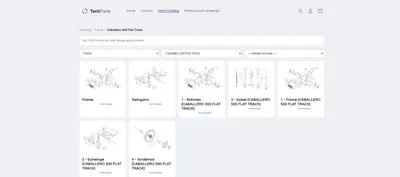
A technical bill of materials already tells you everything you need for an order: which part, in what quantity, at which item. Yet in many shops it still ends up as a PDF attachment or plain text — leaving the customer to transfer every line into the product search by hand. Techparts turns the bill of materials into a parts list that can be ordered directly: next to the exploded view, or on its own.
What every item in the list shows
- Description and SKUunique, just like in your own inventory management system.
- OEM numberfrom a barcode, a metafield, or straight from the item in the drawing.
- Price, with a struck-through compare-at price if you like.
- StockIn stock, out of stock, sold out — visible before ordering.
- Quantity needed, which the quantity selector is pre-filled with.
- Alternative itemsseveral items at one position, for example a multi-pack or a successor part, expandable.
- Free-text noteat the item, for restrictions such as "only together with item 12".
Each of these fields can be turned off individually if it's not needed for your product range.
Order from the list, not around it
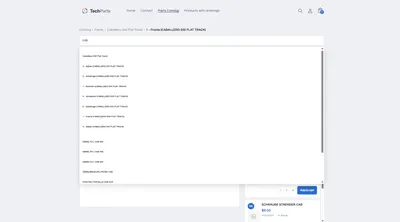
The quantity selector sits right in the row, with − and +, pre-filled with the quantity needed. Clicking "Add to cart" puts the part into Shopify's own cart, whether from the row or from the product card. The cart counter in your theme updates immediately, and a dedicated confirmation states the new quantity in the cart.
If you know the number, you don't need to search
Above the list, a search field filters by description, SKU, and OEM number, matching partial strings: typing 341005 also finds 00341005. A results counter shows "3 of 52" or "No matches", and a clear button resets the filter. Rows without a match are hidden, not removed — expanded alternatives and quantities already chosen are preserved.
Four views, one data source
The same bill of materials can be displayed differently, depending on how the customer works:
- SplitDrawing and list side by side, the default case.
- List below the drawingwhen the drawing needs more space.
- Drawing only, at full width, for sheets with a lot of detail.
- List onlyfor buyers who already know their part numbers and want to go straight to the cart.
You decide in the theme editor which view the shop shows by default, and whether the customer is allowed to switch.
From the bill of materials to the item: the connection stays visible
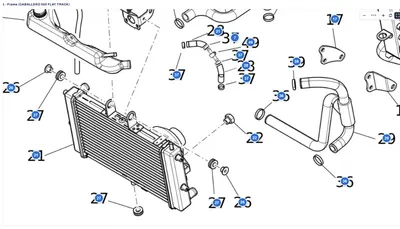
The hotspot and the row are linked: clicking the hotspot in the drawing highlights the matching row in the list and moves it to the top, and clicking the row marks the hotspot in turn. That way the customer never loses the connection between what they see and what they order. How the drawing and hotspots work in detail is shown on the exploded views for Shopify page.
Frequently Asked Questions
Can I hide individual columns in the list?
Yes. Image, item number, SKU, OEM number, price, stock, and the add-to-cart button can all be turned off individually in the theme editor if a field doesn't fit your product range.
Where does the OEM number in the list come from?
From the product's barcode, from a metafield, or straight from the item in the drawing — set once for the whole shop. This also allows the same product to show different OEM numbers in different drawings.
What happens if an item appears more than once in the drawing?
It's listed once and shown as "4× in the drawing", instead of appearing four times.
Does the list work without an exploded view too?
Yes, via the "parts list only" view. It shows just the items, compact and without an image of the drawing — handy for buyers who want to get straight to the point.
More on this in the Guide
-
Spare Parts Catalog in Shopify: How Customers Find the Right Part
How a spare parts catalog is built in Shopify: category tree, exploded views with hotspots, parts list and search by part number. Read more -
Avoiding Wrong Orders and Returns for Spare Parts
Why customers order the wrong spare part, and how a shop can prevent it: drawing, model matching, quantities, notes and superseded parts. Read more -
Spare Parts Search by Part Number: SKUs and OEM Numbers That Actually Get Found
Why customers often can't find their part number in the shop – leading zeros, hyphens, old numbers – and how a spare parts search finds it anyway. Read more


See your own catalog in your own shop.
Install Techparts, set up one assembly, view it in the shop. The free plan covers fifteen products with a drawing, with no time limit.